
Tracking and analysis of the campaigns is a big part of the job for a digital marketer. These practices allow digital marketers to optimize their existing ad campaigns and make sure that they outperform the last one. Regular optimization of the ad campaigns is the only way to stay on track and ahead of the competition in the highly competitive marketing environments.
Research suggests that the best marketers spend a good portion of their budget on marketing analytics. They spend as much as 11% of their total budget on analytics. (Source) While Google Analytics is the most powerful analytical tool for search engines on the internet, the Facebook Pixel is the preferred tool for analyzing Facebook ads on your website. The tool helps you track the user activities of your website so that you can get a valuable insight into its conversion statistics.
How Does Facebook Pixel Help You?
The Facebook Pixel tool helps you in the following ways:
-
Track the Conversion Ratio
The click-to-conversion ratio is the most important metric that digital marketers use to measure the rate of success/failure of their ad campaigns. Facebook Pixel can fetch data from your website that sells the product/service and the Facebook ad campaign to calculate the conversion ratio.
-
Optimize Existing Ad Campaigns
The Pixel tool has an inbuilt feature that allows you to target an audience that has higher chances of conversion. It will help you target this set of audience with repeated ads to convert them quickly.
-
Target Customers with Remarketing
The tool also has a feature that helps you identify your existing customers and run relevant remarketing campaigns on their Facebook profiles. The tool fetches data from the ads that you run on various PPC campaigns and compares it to the ads that you run on Facebook ad campaigns.
-
Track Events on Websites
Facebook Pixel can also help you track the complete activity of your audience on the website. It will keep tabs on the web pages where the customer spends most of his/her time and track relevant events such as clicks and purchases for you.
-
Identify and Target Relevant Audience
You can extrapolate the results from this data to identify the candidates that have the highest potential for conversion. An expert digital marketer will help you make sense of this data so that you can focus on the campaigns that derive the best results for you instead of the ones that do not produce desirable results.
How Does Google Tag Manager Help You?
The tag management system by Google helps you manage the JavaScript and HTML tags on your website that are used by the tracking tools. Without tag manager, most of your tracking tools will fail automatically and not reveal the necessary information about the audience’s activities.

You need to learn how to couple the Google Tag Manager tool with the Facebook Pixel tool to start the tracking on your website.
Installing Facebook Pixel with Google Tag Manager
Use the following steps to start using Facebook Pixel with Google Tag Manager and optimize your Facebook ad campaigns for better conversion ratios.
On Google Tag Manager
-
Log in to the Google Tag Manager account
You need to work with a dedicated Google Tag Manager account for your website. If you do not have a pre-existing account, you need to create a new one for this process to function well.
-
Enter your website URL and click on add a new tag
When prompted, enter your website URL and click on add a new tag option. You need to have the access to the back-end architecture of your own website for this step to function properly. In case you face a difficulty with this process, get in touch with your website developer to get the back-end access.
-
Check the custom HTML tag option and add a unique name for the tag
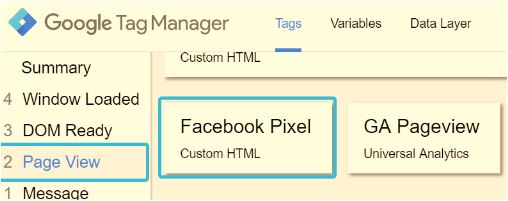
Now, you will have to create a new tag wherein you will paste the code from the Facebook Pixel tool. To do this, create an HTML tag and add a specific name to it. Add a name that depicts the function of the tag clearly. Use a name like ‘Facebook Pixel Tag’ to make sure that you can easily locate the tag at a later stage while editing it.
On Facebook Business Account
-
Go to Event Manager settings and look for the details of the pixel
Log in to your business Facebook account and go for the ad settings. Here you will see the event manager settings. Click on the details for a custom Facebook Pixel.
-
Click on set up and select the option that says, ‘Manually Install the Code Yourself’
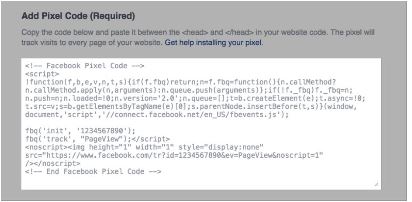
Upon clicking this tab, you will get a short HTML code on your screen in a text box. This is the Pixel tool code that will help you start the tracking process on the Google Tag Manager.
-
Copy the Pixel code to your clipboard
Copy the code as it is onto your clipboard. Make sure that you copy the full length of the code since even minor inconsistencies will render the tracking script useless on Google Tag Manager.
On Google Tag Manager
-
Paste the copied code into the HTML container text box
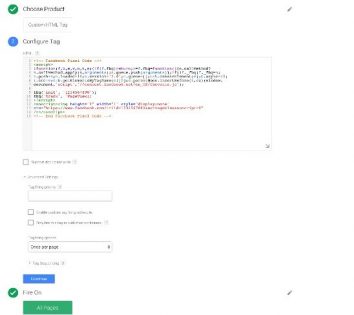
Navigate back to the Google Tag Manager tab and paste the copied code into the HTML container box as it is.
-
Check advanced settings and select the ‘Once per page’ option under ‘Tag firing options’
You can choose to launch the Pixel code several times on a single page to increase the accuracy of the tracking speed.
-
Select the pages that you wish to install the script on
These settings will help you launch the Pixel tracking code onto one or more pages simultaneously. Selecting the ‘All Pages’ option will launch the script on all pages of the website.
-
Click on ‘Create Tag’
After completion of this process, your Pixel code is ready for deployment. Give it a few minutes so that the Google Tag Manager can deploy it onto your website on the designated pages.
Now that we have installed the Facebook Pixel code onto our website, it is time to check if the code is working correctly or not.
Checking Facebook Pixel with Google Tag Manager
Follow these steps to check if your Facebook Pixel script is working well with the Google Tag Manager.
-
Go to your live website
You need to go to the website where you installed the Pixel script first. You will be able to check the activity of the script on a different window.
-
Navigate to the page where you installed the Pixel script
If you have launched the Facebook Pixel script on all pages, you can stay on the homepage of the website to check the status. On the other hand, if you have launched it on a specific set of pages, navigate to those set pages first.
-
Open Events Manager tab in another window of the browser
Now, open the Events Manager tab on your Facebook business profile to see if the Pixel script is working or not.
-
Perform actions on the live website
Perform a click action on the page where you have launched the Pixel script.
-
Go back to the Events Manager tab to see the status
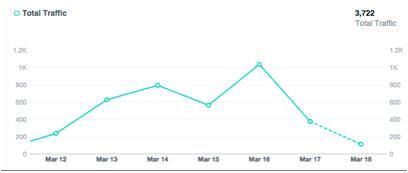
If the script is activated successfully, you will see the line graph on the Events Manager activated. Some activity on the graph suggests that the Pixel script is up and running.
-
Troubleshoot the problems
In case there is no activity on the line graph, you need to troubleshoot the problem. The most common problem associated with the inactive graph is the wrong formatting of the Pixel code. If you have not pasted the code from the Facebook Events Manager to the HTML container properly, your script will show no activity.
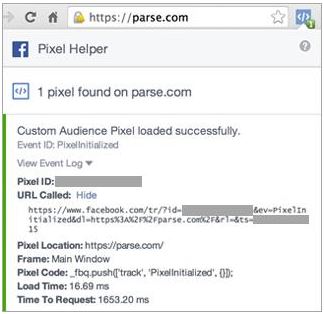
Luckily, there is a simple tool that will help you identify and troubleshoot the problems associated with the functionality of the script. You can download the Facebook Pixel Helper extension for your Google Chrome browser from the Chrome Store. This extension is available for free and is developed by Facebook itself to help people use the Pixel tool correctly.
To use this tool, go back to your website and activate the tool using Pixel Helper icon in the address bar of the browser window. When you do this, the extension will show all the activities (aka Pixel events) captured by the script on the website. The extension will also show the status of these activities to help you see if they were loaded successfully to the Events Manager window or not. In case of a problem, the extension will ask for your permission to start the troubleshooting process. Upon completion of this process, the extension will automatically shut down thereby giving you full access back to the tools and website.
The Facebook Pixel is an extremely powerful tool that every marketer must use to check the status of his/her Facebook ad campaigns. Use these steps to start tracking the success/failure of your Facebook ad campaigns today!

Thanks for sharing Good Blogs with us.
Facebook Pixel helps u to remarketing visitor who have already visited our website and to track conversions
GTM: Is a very powerful tool and it helps us to lower the amount of script need to be added on the website, we just need to Add one GTM script on the website and rest all scripts can be added in GTM container itself like conversion tracking, FB, Remarketing, or any other 3rd party script.
Keep it up write more topics like this 🙂
Nice Ashwani.
Very helpful!!! Thanks for sharing this. I use this methode on my website and its perfectly worked.
Thanks!!
Vijay, Can you let me know which are the best way to get leads through cheap channels. Google PPC Service cost a lot.
Thanks Brian. Good to see such simple steps and it worked pretty well for me.
🙂
It’s very use full!! this helped a lot for my website, as this has very simple steps and tracking is good due to this!
Thanks for sharing this guide. I love to find the worth reading content. I have worked with google tag manager and now will take a step ahead to use this.
Keep up the sharing some great guide like this
Hi Brian,
Thanks for sharing this blog with us.
Could You please write on Youtube SEO? Because these days its going a hot topics and limited information available on internet.
If you can represent some case study on this topic then it would be great.
Keep it up.
Wow..! Good blog Really helpful with us
GTM tool is very helpful tool really simple. easy understand & nice. Just added GTM script on you website and track (Conversion, analytics, call tracking and many more).
Plz share more topics.
Thankss.
Very valuable information. Love to read this,
Please share more topics.
Great blog from the treasure-trove of the master Blogger. The step-by-step run through was clear, and to the point. Thanks for sharing the valuable information Brian.
It’s really, really great information for the peoples, especially who working in the digital marketing field. It helps to set up Facebook pixel easily and correctly through GTM.
Thanks for sharing this great information with us!!!
Great blog.?? It’s a nice, collective and valuable information. Love to read this, really helpful.
Thank you great advice!